Getting started · Zoom
Your video consultations
with Zoom.
Connect your Zoom account to Deiz and access your video consultations from your calendar.
Guide updated on 16 October 2026.
01 · Zoom in Deiz
Before you start
You need a Deiz account and a Zoom account to host consultations. Sign in to Deiz with your practitioner account. Your Zoom plan’s rules and limits still apply.
The integration is currently under review by Zoom. You can start the connection in Deiz, but Zoom may still deny authorization for external accounts until the application is approved.
02 · Zoom in Deiz
Connect your Zoom account
1. In Deiz, open Settings → Integrations, then the Zoom section.
2. Select Connect Zoom. You are redirected to Zoom: sign in to the account that will host your consultations, review the requested permissions and authorize Deiz. If your organization requires approval, contact your Zoom administrator.
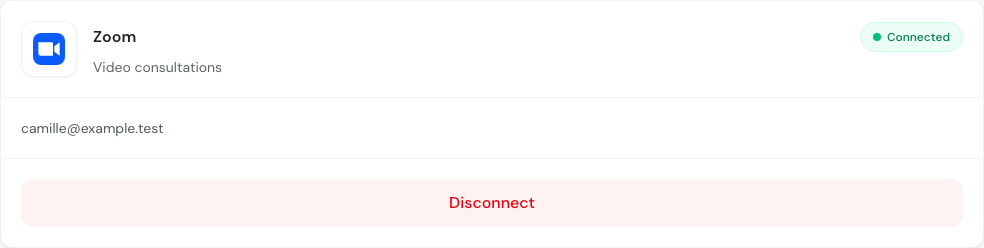
3. You return to Deiz. The Zoom section shows Connected and the linked account’s email address. Check that this is the correct account.
Authorization allows Deiz to identify your Zoom account, create meetings and retrieve their links. It does not give Zoom access to your clinical notes.
03 · Zoom in Deiz
Use Zoom for a consultation
1. Once your account is connected, open Settings → Calendar → Video conferencing and choose Zoom as your video consultation provider.
2. Create an appointment or edit an existing one, selecting Video consultation as the location. Check the patient, date and times, then confirm.
3. When the consultation is due, open the appointment in your calendar and select Join video call. Stay signed in to your Deiz account to access the meeting as the host.
4. The patient uses their appointment’s usual Deiz link. When Zoom is selected, this link takes them to the Zoom meeting after any payment steps required for the appointment. Admit them from the Zoom waiting room.
The meeting is created when the link is first opened, using the appointment times and the title “Consultation”. Deiz does not enable automatic recording or send the patient’s identity in the creation request.
04 · Zoom in Deiz
Edit an appointment or switch tools
If a Zoom meeting has already been created, editing or deleting the appointment in Deiz does not update or delete that meeting in Zoom. Manage it directly in your Zoom account if needed.
Your choice of video tool also applies to Deiz links for existing appointments. If the Zoom account is no longer connected or its authorization has been revoked, Deiz may use its internal video conferencing. A temporary Zoom outage does not trigger this automatic switch.
05 · Zoom in Deiz
Disconnect Zoom and revoke access
1. Open Settings → Integrations → Zoom in Deiz.
2. Select Disconnect and wait for confirmation. If an error occurs, try again or contact support.
Once disconnection succeeds, Deiz revokes its Zoom authorization and deletes connection data and local meeting associations. Meetings already created remain in your Zoom account. Delete them in Zoom if you wish. Your Deiz appointments are retained.
You can also revoke authorization from the management page for added apps in your Zoom Marketplace account. In that case, Deiz detects revocation on a subsequent Zoom API call or authorization refresh. To also delete local connection data, disconnect within Deiz or contact support.
06 · Zoom in Deiz
Troubleshooting
Zoom says the app cannot be found or is unavailable: while Zoom’s review is in progress, some external accounts cannot yet authorize Deiz. You can continue using another tool offered in the video conferencing settings.
Authorization cancelled or denied: start the connection again from Deiz. Check which Zoom account you are using and, if necessary, ask its administrator to approve the app.
Connection expired or revoked: check the Zoom section in integrations. Select Reconnect Zoom or choose another tool in calendar settings.
Zoom temporarily unavailable: try again shortly. If the problem persists, contact support.
Meeting creation could not be confirmed: contact support before trying to recreate the meeting. We will help you check whether it already exists in Zoom.
The patient remains in the waiting room: open the consultation from Deiz using your practitioner account, then admit the patient in Zoom. Also check microphone and camera permissions on each device.
07 · Zoom in Deiz
Support and privacy
The usual response time is 24 to 48 hours. Tell us which step you reached and the error message. Do not send passwords, host-only links, clinical data or patient identities in your request.
For details about data exchanged with Zoom, retention and deletion, see the Zoom section of our privacy policy.